
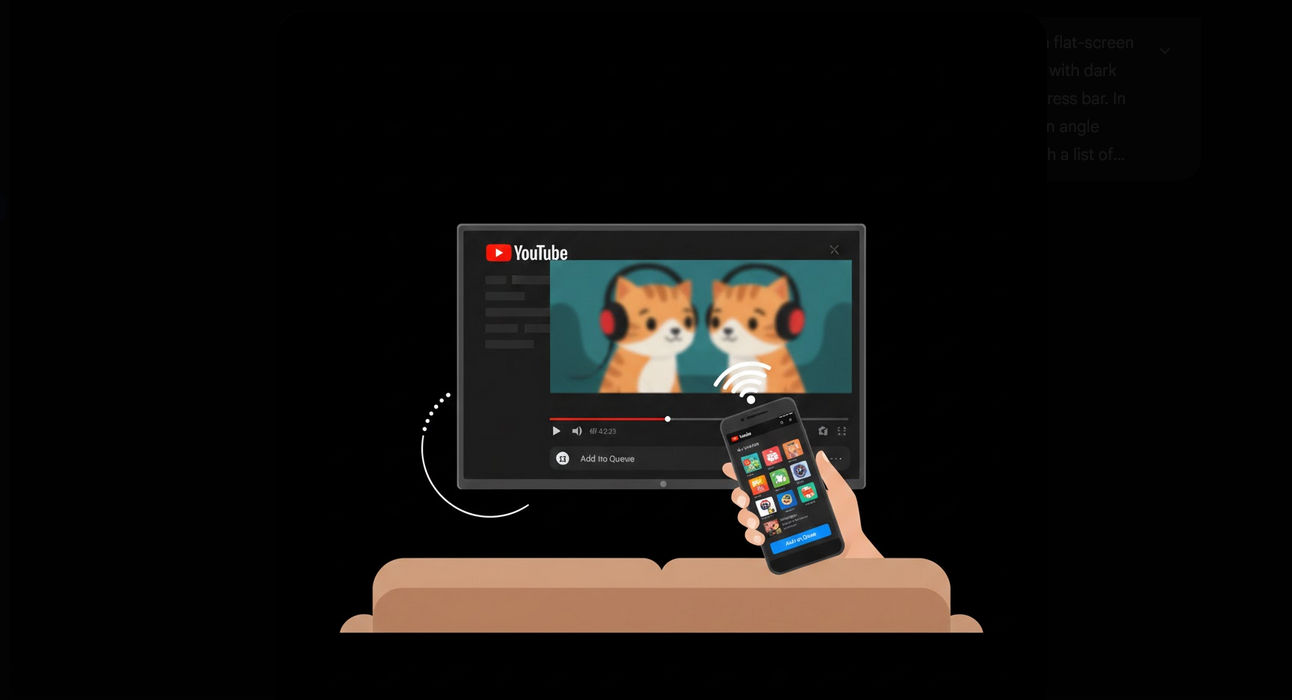
There is a feature on YouTube known as two-screen mode that lets you control your smart TV using your phone. This feature allows you to browse and set up queues using your phone, so you do not have to use the remote control to browse on YouTube anymore.
How Does Two-Screen Mode Work?
First, in order to enable the two-screen mode, your phone and smart TV need to be on the same Wi-Fi network, and thus, YouTube establishes a connection between your devices and uses the phone as a controller for browsing and creating queues. Everything that you choose on your phone appears on the TV and the video that you are playing on the phone is not necessarily the video that you see on the TV.
How to Activate Two-Screen Mode?
Connect to the Same Wi-Fi Network: Connect your phone and TV to the same Wi-Fi network.
Open YouTube on TV: Open the YouTube application on your smart TV or streamer.
Open YouTube on Phone: Open the YouTube application on your phone.
Click on Cast Button: Tap on the cast button on the screen of your phone and choose the name of your TV.
Browsing and Watching: Search for the videos and tap on play. The video should start showing up on the TV automatically.
Creating Video Play Queues Using Two-Screen Mode
One of the best features you can use while being in two-screen mode is creation and management of video play queues using your phone while you are watching videos on the TV.
- Add to the Queue: Hold down any video on your phone and choose “add to queue” instead of starting the video right away.
- Look at the Queue: Check out your current queue by tapping on “Now Playing” bar on your phone.
- Ordering the Queue: Drag the videos to the up/down positions in the queue.
- Remove Videos: Slide out the videos from your queue in case you do not want to watch them.
- Autoplay: As soon as you run out of videos in your queue, YouTube automatically starts playing the next recommended video.
Two-Screen Mode on YouTube Vanced
YouTube Vanced has a feature that allows you to cast videos on your smart TV and two-screen mode works on compatible smart TVs/streamers. In other words, you are able to browse your subscription feeds, search for videos and create play queues using the Vanced application on your phone while the video is playing on the TV. Not only it is really fast but also ad-free on the phone which simplifies the whole process.
However, ads on the TV side depend on the version of YouTube application installed on your TV. Browsing, on the other hand, on the phone side stays ad-free. Moreover, with the help of Vanced MicroG you are able to get access to your subscriptions, playlists and recommended videos and control video playback.
Issues with Two-Screen Mode on Vanced
- Same Network: Make sure that both your devices are on the same Wi-Fi network and that the router does not differentiate between guest networks and 2.4GHz/5GHz bands as separate networks.
- Restart Devices: Restart your TV and phone in case there is no cast button available.
- Update Apps: Update the YouTube applications on both your TV and phone to the latest versions.
- TV Settings: Some smart TVs require you to turn on cast/screen mirror settings.
- Disable Your VPN: You may disconnect from the connection on your phone because this connection prevents local devices discovery on the same network.
Two-Screen Watching Advantages
Easy Browsing: Touchscreens/keyboards are much faster to browse than remote controls.
Queue Management: Manage your video queues without interrupting the currently playing video.
Big Screen Enjoyment: Watch the content on the big screen with high-quality sound and control everything from your pocket.
Multi-Tasking: Do whatever you want on your phone while watching video independently on the TV.
Who Needs Two-Screen Mode?
Families: Families watching YouTube together on the same TV with one person controlling the queue.
Party Hosts: Party hosts arranging the music video playlists from their phone.
Comfort Viewers: People who prefer browsing on their phone and watching videos on the big screen.
Video Curators: People interested in creating video queues for long watching sessions.
Conclusion
YouTube two-screen mode allows you to control your TV videos using your phone and acts as the remote control and queue manager. It combines the advantages of easy navigation and couch browsing with high-quality viewing experience on the big screen. YouTube Vanced on the phone guarantees you completely ad-free browsing and queue management experience.
